 AskFoodie.AI
Counter staff guide
What the person at the counter says and does — the pitch, the tap, the 6-digit code, and handing over a reward. Print it and leave it by the till.
Your staff are the whole programme. A diner only collects a stamp because somebody at the counter mentioned it, and a reward only gets handed over because somebody said yes. This page is what that person needs to know, and it is written to be printed and left where they stand.
Download the printable guide (English)
Three A4 pages, ready to print. Fill in your name, reward and visit count by hand.
हिंदी में डाउनलोड करें
The same three pages in Hindi — for a counter where English is not the working language.
Reading this in Hindi is easier for most counter teams in India — the same page is at काउंटर स्टाफ गाइड (हिंदी).
The printed sheet has three blanks — your restaurant name, how many visits, and what they get. Write them in once on the printed copy and it is ready; nothing about the sheet is specific to one restaurant.
1. With the bill — say the card exists
Nobody taps a card they have not been told about. The opening line is the whole job:
We run a punch card here — a stamp on every visit. Six visits and the masala chai is free.
Point at the counter card as you say it. The reward and the count are printed on it, so the card backs up what your staff just said.
If they ask why bother, the answer is the reward itself — not the app. Free item, nothing to download, nothing to carry, and our deals reach their phone.
2. The tap, and what to do when it fails
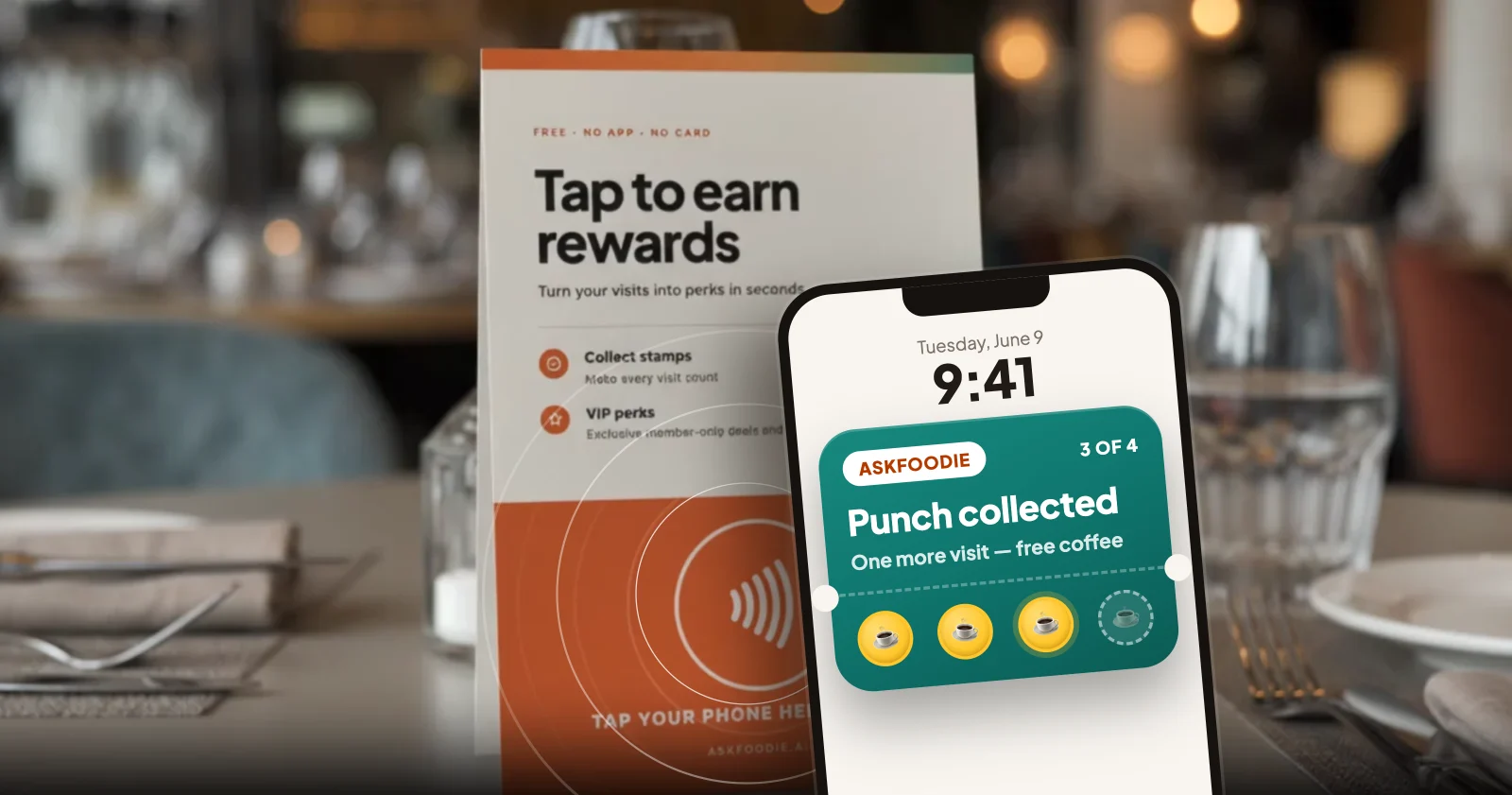
Three rungs, top to bottom. Each one is only tried when the one above it does nothing.
- "Hold your phone on the orange circle for 2–3 seconds." The back of the phone faces the card, and the end with the camera is the end that must meet the circle — that is where NFC sits on most phones. The customer holds their own phone; there is nothing to open first.
- Nothing happened — "Switch NFC on in Settings, then try again." Android only. On an iPhone there is nothing to switch on, so go to step 3.
- Still nothing — the counter code. "Scan the QR on my screen, sign in, and the code fills itself in."
The stamp lands on their screen, not yours — it says "Punched · 1 / 6". That is the only confirmation there is.
If a customer asks for “the 6-digit code”
That line is printed on the counter card: "Phone won't tap? Ask for a 6-digit code at the counter." So the request means the tap has already failed — go straight to step 3 rather than starting again.
3. Where the code is
On your own screen: Menu → Check in, under Loyalty. The code and a QR are both on that page.
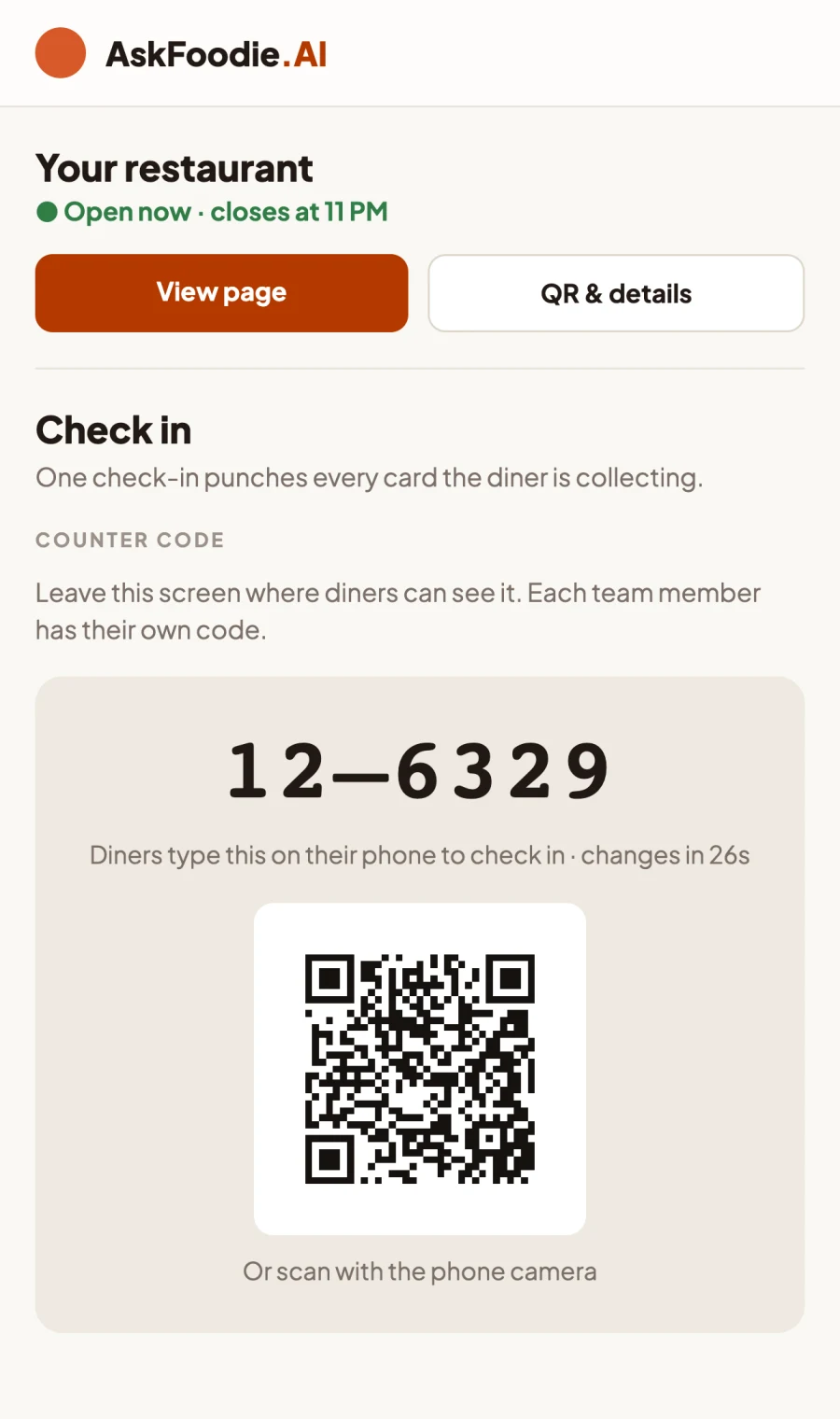
- Turn the screen around rather than reading it out. Their camera on that QR fills the box in for them; six digits read across a counter is the slow way.
- The code changes every minute, so "it says the code is wrong" almost always means they typed the one before. Show them the new one.
- Every staff member has their own code. Give the one on your own screen.
- If a tablet is left open on the counter, the code is already showing on it.
The customer needs to be signed in before the code box appears at all. If they would rather not sign in now, have them tap anyway — the tap is recorded and the stamp lands by itself the day they do.
Two different 6-digit codes
The sign-in code arrives on the customer's own phone. The counter code stays on yours. Staff who don't know this send people looking for the wrong one.
4. Giving a reward
When the card is full, the customer opens the reward themselves and shows it to you. The order matters:
- They open Rewards and press "Show staff" on the one they want.
- You say yes — out loud, before anything is tapped. Check the name on it: that list holds rewards from other restaurants too.
- Then "Use it now" is tapped — by them, or by you in front of them.
- A green screen appears with the time and a reward number.
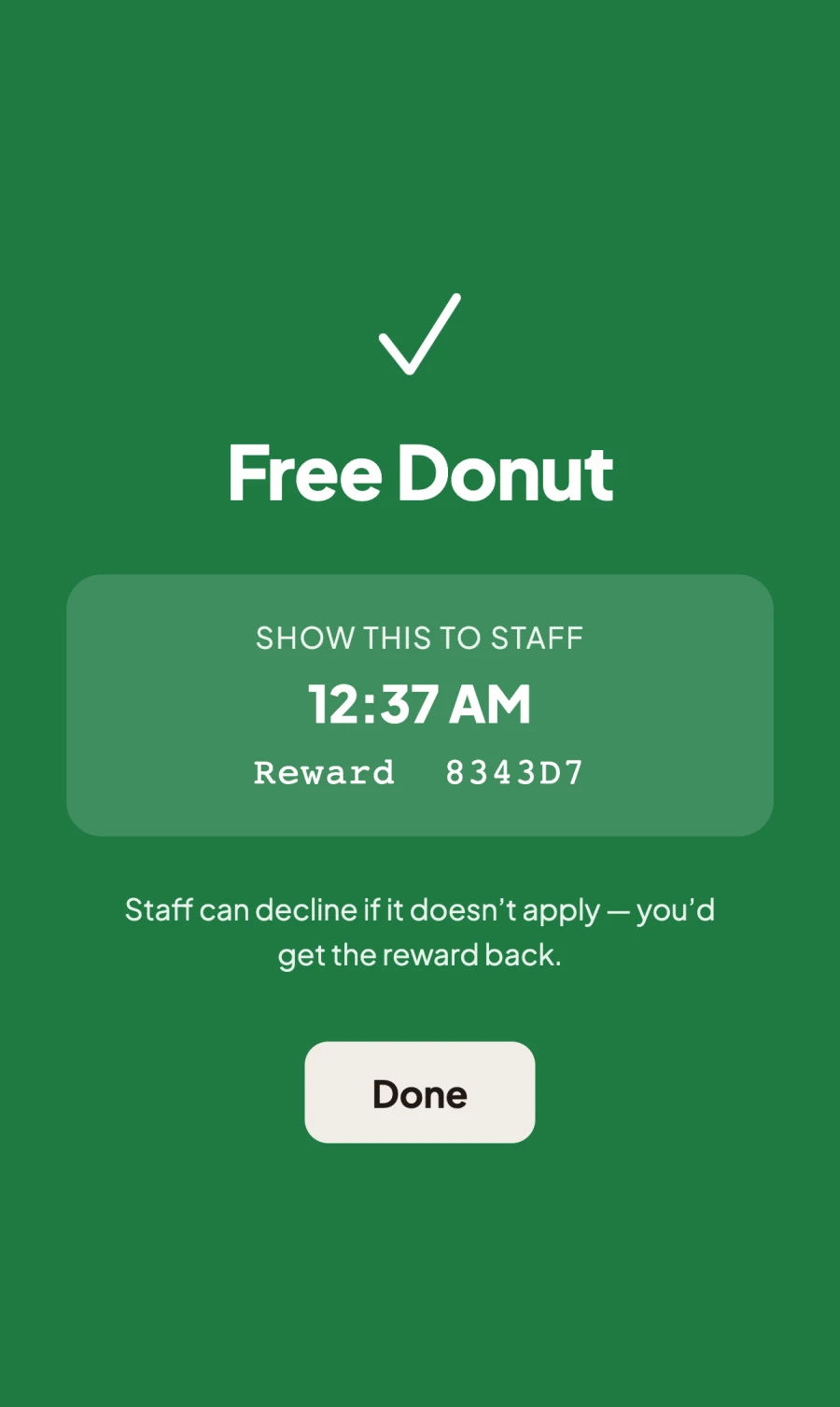
Nothing is spent until that button is tapped, which is why "not today, sorry" costs nothing — the reward stays exactly where it was. And the green screen is the proof: no green screen, no reward used.
After that, the app is finished and you are not. Handing over the free item, telling the kitchen, taking it off the bill — that is staff work. The app only records that the reward went through.
If it sticks
| What you see | What it means |
|---|---|
| "The code is wrong" | It changes every minute. Give them the new one off your screen. |
| No code box on their phone | They are not signed in yet. |
| It says the stamp is already done | One stamp every 6 hours. Evening or the next day, it lands again. |
| No internet | Nothing is recorded without it — put them on the restaurant wifi and tap again. |
| They cannot be given the reward today | Say so plainly and don't let them tap "Use it now". It stays with them. |
| "Use it now" was tapped by mistake | On Activity → "Rewards used today", press "Give back" on that row. Works until the end of the day. |
| Two rewards in one visit | One reward every 3 hours. The second one next time. |
| Nothing under "Rewards" | The card is not full, or they are signed in on another account. |